Running COBOL in IntelliJ
Within the JVM community, once in a while somebody jokes about getting old and therefore needing to start learning COBOL. Usually, someone responds that there are indeed some “precious older people” who wrote COBOL, or dare I say it, still write COBOL today. For me, COBOL has always sounded like a relic of the past. Something you read about, not something you seriously consider learning. But lately, I have been hearing rumours about companies starting to recruit new employees specifically to fill COBOL vacancies. That triggered me hard enough to start wondering. Can I actually run COBOL on my own laptop today, and if so, can I have a reasonably nice developer experience while doing so?
So I needed to tackle two things: installing a compiler to actually run COBOL code, and finding an IDE that would give me a decent developer experience. For me, that effectively meant using IntelliJ. It is the IDE I use every day, and thus I am very much familiar with it. Ideally, that meant finding a COBOL plugin that would integrate reasonably well into my existing setup.
Luckily, finding a plugin took about five seconds. The Zowe™ COBOL Language Support plugin looked like exactly what I needed, so I installed it. Next, I let ChatGPT generate a classic hello world example for me, because I definitely do not know any COBOL yet:
       IDENTIFICATION DIVISION.
       PROGRAM-ID. HELLO.

       PROCEDURE DIVISION.
           DISPLAY "Hello, world".
           STOP RUN.
And then I immediately hit a wall. There was no run button in sight. After a bit of investigation, it turned out that the plugin only provides TextMate-based syntax highlighting and LSP support. That means decent code coloring and some basic validation, but no support for compiling or actually running COBOL code.
So I thought of something else.
What if I simply installed a compiler myself and used IntelliJ’s "Run Configuration" to run a shell script that compiles and runs the currently opened COBOL file?
That way, it would still almost feel like native IntelliJ support.
Installing a COBOL compiler on macOS turned out to be trivial.
A single brew install gnucobol was enough to get GNU COBOL up and running.
The only thing missing was the script itself, which could easily be generated by AI.
#!/bin/zsh
set -e

error() {
  echo "\033[31m$1\033[0m"
}

if [ -z "$1" ]; then
  error "No file provided."
  exit 1
fi

SRC="$1"
EXT="${SRC##*.}"

if [[ "$EXT" != "cob" && "$EXT" != "cbl" ]]; then
  error "This is not a COBOL file. Only .cob or .cbl extensions are supported!"
  exit 1
fi

OUT="$(basename "$SRC" .$EXT)"

cobc -x "$SRC" -o "$OUT"
./"$OUT"
To make this work, I needed to figure out a way to select the current opened file.
After a bit of research, I discovered that IntelliJ provides a number of built-in macros, which are essentially variables you can use to define paths, options, and other command-line arguments.
The $FilePath$ macro, which resolves to the absolute path of the current file, looked like exactly what I needed.
Unfortunately, it turned out to be a dead end!
At the time of writing, macros are not supported in Shell Script run configurations, which meant this approach would not work after all.
Bummer. So what now? Luckily, ChatGPT pointed me to IntelliJ’s External Tools feature. This allows you to configure third-party command-line applications and run them directly from IntelliJ. And more importantly, external tools do support macros. That was exactly what I needed! So I wired it up, and configured the tool like this:
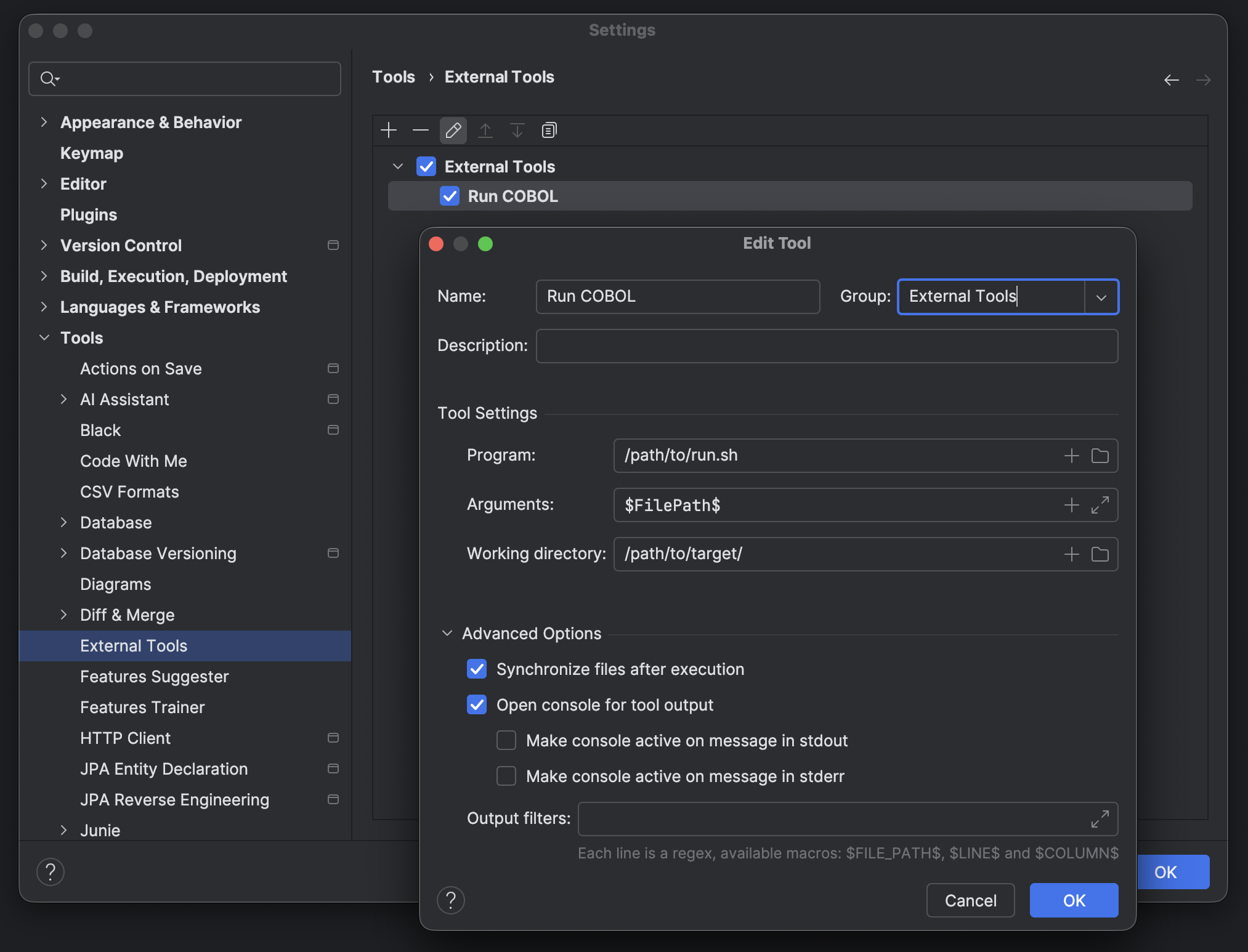
Then I had to go to the Tools → External Tools → Run COBOL menu, to run a COBOL file:
/path/to/run.sh /path/to/hello.cob
Hello, world

Process finished with exit code 0
Awesome!
But still, I had to click three times to run the script… So I figured, there’s another thing I can do to make it even more fleshed out. At the top of the IDE sits the toolbar, which is fully customizable. For every action IntelliJ knows about, you can add a custom button to the toolbar. That meant I could create a dedicated action, link it to my “Run COBOL” external tool, and place it right where a run button should be. To make it complete, I used the COBOL rhino as the button icon:

And there you have it: a one-click button I can press anytime I want. With that, my journey to setting up the environment is complete. Now unto the next task, starting to learn the language!
